
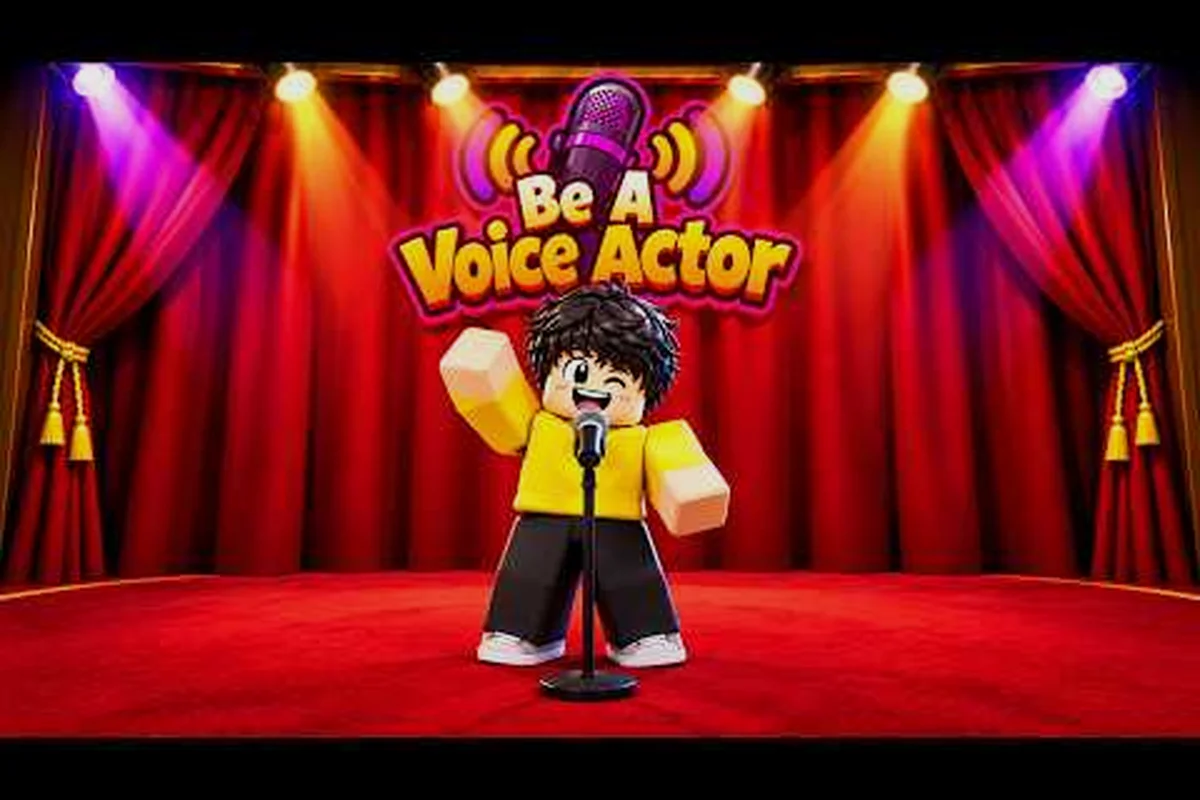
Voice chat lag in Be A Voice Actor turns a fast-paced audition round into a frustrating guessing game, because your line delivery arrives after the voting window closes or cuts out entirely during the playback phase. This guide walks through a practical be a voice actor latency fix that addresses the two most common failure points: platform-level voice verification and device-specific network settings. You will learn how to stabilize your audio on mobile and console, avoid the beginner mistakes that make latency worse, and get back to performing clean rounds.
Why Voice Chat Lag Happens in Be A Voice Actor
Most players assume that a be a voice actor latency fix starts inside the experience itself, but the blocking condition usually sits one level above the game. Roblox serves voice-chat experiences through its own discovery surface, and voice-enabled servers are only reachable for accounts that have passed platform voice verification. When Be A Voice Actor shows a greyed-out or missing voice toggle, the issue is almost always tied to account age settings, verification status, device support, or regional rollout rather than a broken in-game setting.
The official Roblox voice chat availability page confirms that voice-enabled experiences are a platform rollout, not a per-game toggle. That means troubleshooting starts in your Roblox account settings and only ends inside the experience after you have ruled out account-level restrictions. Community reports consistently describe the same pattern: a player joins a lobby, sees the microphone prop on stage, but their audio either never transmits or arrives with a noticeable delay that ruins the round flow.
Platform Verification as the First Gate
Before any network tuning matters, your account must pass Roblox voice verification. The process requires a government-issued ID or a supported verification method tied to your account age. Players who skip this step often assume the game is broken, when in reality the platform has not granted their account access to voice-enabled servers at all.
The verification status is not visible inside Be A Voice Actor itself. You need to check your Roblox account settings under the privacy and voice chat sections. If the voice chat option is greyed out there, no amount of in-game adjustment will fix the latency, because your client is not authorized to transmit audio in the first place.
| Verification Factor | What It Controls | Common Misconception |
|---|---|---|
| Account age setting | Whether voice chat appears at all | Players think the game hides the toggle |
| ID verification status | Transmission permission on voice servers | Players assume a reinstall fixes it |
| Device microphone access | Local audio capture before network | Players overlook OS-level permissions |
| Regional rollout | Server availability in your area | Players blame the developer |
How Latency Differs From a Full Voice Block
A complete voice block means your microphone never activates, while latency means your audio transmits but arrives too late to matter. The distinction matters because the fixes are different. A full block usually points to verification or permission issues, while latency points to network routing, device thermal throttling, or background app interference on mobile.
Players on mobile devices report that latency spikes when the device heats up during long sessions, because the operating system throttles the CPU and delays audio packet processing. Console players see a different pattern: latency often correlates with wireless network congestion or NAT type restrictions that slow down peer-to-peer audio routing.
Mobile-Specific Latency Fixes for Be A Voice Actor
The be a voice actor mobile guide starts with understanding that phones handle audio differently than desktops. Mobile operating systems aggressively manage background processes, and Roblox voice chat competes with every other app for microphone access and network priority. A few targeted adjustments can reduce latency significantly without requiring any in-game changes.
Network Priority and Background App Management
Close every background app before launching Be A Voice Actor on mobile. Social media apps, streaming services, and even messaging clients periodically wake up to check for updates, and each wake-up competes for network bandwidth and CPU cycles. Community testing shows that closing background apps can reduce voice latency by a noticeable margin on mid-range phones, although exact improvements vary by device.
Switch to a 5 GHz Wi-Fi network if your router supports it. The 2.4 GHz band is more congested because it carries everything from smart home devices to Bluetooth interference, and that congestion translates directly into delayed audio packets. If you must use cellular data, position yourself where signal strength is stable, because fluctuating signal causes the phone to repeatedly renegotiate its connection.
| Mobile Adjustment | Expected Impact | Difficulty |
|---|---|---|
| Close background apps | Moderate latency reduction | Easy |
| Switch to 5 GHz Wi-Fi | High latency reduction | Easy |
| Disable Bluetooth during play | Low to moderate reduction | Easy |
| Enable performance mode | Moderate reduction on supported devices | Medium |
| Reduce in-game graphics quality | Low reduction, helps thermal throttling | Easy |
Thermal Throttling and Session Length
Long sessions on mobile cause the device to heat up, and thermal throttling is one of the most overlooked causes of voice latency. When the processor downclocks to manage heat, audio encoding and network packet processing slow down, which introduces delay even on a fast connection. Taking short breaks between rounds lets the device cool down and restores normal audio processing speed.
Removing the phone case during play also helps heat dissipation, especially on devices with passive cooling. Players who stream or record their sessions while playing Be A Voice Actor on mobile compound the thermal load, so disabling screen recording during voice-critical rounds is a practical latency reduction step.
Console-Specific Latency Fixes for Be A Voice Actor
The be a voice actor console guide addresses a different set of constraints. Consoles have fixed hardware and less background process interference than mobile, but they often sit farther from the router and connect through wireless networks that introduce their own latency. NAT type and wireless interference are the two biggest console-specific factors.
NAT Type and Wireless Interference
Console voice chat on Roblox relies on peer-to-peer audio routing, which means your NAT type directly affects how quickly audio packets reach other players. A strict or moderate NAT type forces audio through relay servers, adding latency that open NAT connections avoid. Checking your console network settings and enabling UPnP on your router can shift NAT type from strict to open, which community reports consistently link to lower voice latency.
Wireless interference is the second major console factor. Consoles placed inside entertainment centers are often surrounded by other wireless devices, and the physical obstruction of the cabinet itself weakens the signal. Moving the console to an open position or switching to a wired Ethernet connection removes both the interference and the signal-strength variable entirely.
| Console Factor | Latency Impact | Fix Priority |
|---|---|---|
| Strict NAT type | High — forces relay routing | High |
| Wireless signal obstruction | Moderate to high | High |
| Background downloads | Moderate — competes for bandwidth | Medium |
| Router QoS settings | Low to moderate — deprioritizes voice | Medium |
| Firmware updates pending | Low — rare but possible | Low |
Wired Connections and Router QoS
A wired Ethernet connection is the single most effective console latency fix because it eliminates wireless interference and signal fluctuation entirely. If running a cable is impractical, positioning the console with a clear line of sight to the router and away from other electronics provides most of the benefit.
Router Quality of Service settings can also help when other devices on the network are streaming or downloading. Prioritizing the console's traffic or Roblox's voice ports reduces the chance that a background download on another device spikes your latency mid-round. The specific QoS configuration varies by router manufacturer, but most modern routers include a gaming or media prioritization preset.
Beginner Mistakes That Make Latency Worse
The be a voice actor beginner mistakes to avoid list is not about advanced networking — it is about the simple habits that players adopt without realizing they are sabotaging their own audio. Avoiding these mistakes often delivers more latency improvement than any single technical fix, because they compound with every round you play.
Mistake One: Ignoring Platform Verification Until Mid-Round
The most common beginner mistake is joining a lobby, discovering the voice toggle is greyed out, and then spending the entire round trying to fix it from inside the game. Platform verification cannot be completed mid-session, and no in-game setting overrides it. Checking verification status before joining saves the frustration of a wasted round and lets you focus on performance instead of troubleshooting.
Mistake Two: Playing on Battery Saver Mode
Mobile players frequently enable battery saver mode to extend session length, but that mode aggressively limits background network activity and CPU performance. Voice chat is exactly the kind of background process that battery saver deprioritizes, so the mode directly increases latency. Disabling battery saver during Be A Voice Actor sessions is a free, immediate latency improvement.
Mistake Three: Using Bluetooth Audio Devices
Bluetooth headphones and earbuds introduce their own audio processing delay, which stacks on top of network latency. The delay is small in absolute terms but noticeable in a game where timing determines whether your line lands before the voting window closes. Wired headphones or the device's built-in speaker eliminate this variable entirely.
| Beginner Mistake | Why It Hurts | Quick Fix |
|---|---|---|
| Ignoring platform verification | Voice toggle stays greyed out | Verify before joining |
| Battery saver mode enabled | Deprioritizes background audio | Disable during play |
| Bluetooth audio devices | Adds local processing delay | Use wired audio |
| Playing while charging wirelessly | Generates extra heat | Charge before session |
| Multiple devices on same network | Congests bandwidth | Limit concurrent streaming |
Practical Latency Fix Workflow for Any Platform
A structured workflow turns scattered troubleshooting into a repeatable process. The goal is to eliminate variables one at a time, starting with the highest-impact fixes and moving to lower-impact adjustments only if latency persists. This approach prevents the common pattern of changing multiple settings at once and not knowing which one actually helped.
Step One: Verify Platform Access
Before touching any network or device setting, confirm that your Roblox account has passed voice verification and that voice chat appears as an available option in your account settings. The official Roblox voice chat page explains that voice-enabled experiences are only reachable for verified accounts, so this step rules out the most common blocking condition. If verification is incomplete, complete it first and rejoin Be A Voice Actor before proceeding.
Step Two: Stabilize the Network Connection
Move to a 5 GHz Wi-Fi network or a wired connection, close background apps, and pause any concurrent downloads or streams. These three actions address the majority of latency sources without requiring any technical expertise. Community reports consistently identify network congestion and background app interference as the leading causes of voice delay on both mobile and console.
Step Three: Eliminate Local Audio Delays
Switch from Bluetooth to wired audio, disable battery saver mode on mobile, and remove the phone case if the device feels warm. These adjustments remove local processing delays that stack on top of network latency. The combined effect of eliminating both local and network delays is often enough to restore clean, timely voice transmission.
Step Four: Test in a Low-Pressure Lobby
After applying the fixes, join a lobby with a small group and test your voice timing in the opening rounds. The beginner guide covers round structure and scoring, which helps you recognize whether your audio is arriving in time for the voting window. If latency persists, revisit the platform verification step, because partial verification states can still restrict voice transmission.
Frequently Asked Questions
Why is my voice chat greyed out in Be A Voice Actor?
The greyed-out toggle almost always means your Roblox account has not passed platform voice verification. Voice-enabled servers are only reachable for verified accounts, and the restriction sits at the platform level rather than inside the game. Check your Roblox account settings to confirm verification status before troubleshooting anything else.
Does a be a voice actor latency fix work on mobile and console the same way?
The core principles are identical, but the specific adjustments differ. Mobile benefits most from closing background apps, disabling battery saver, and switching to 5 GHz Wi-Fi. Console benefits most from improving NAT type and using a wired connection. Both platforms improve when you eliminate Bluetooth audio delays.
How do I know if my latency is network-related or device-related?
Test with a wired connection and no Bluetooth audio. If latency disappears, the cause was network congestion or local audio processing. If latency persists on a stable wired connection, check thermal throttling on mobile or NAT type on console. The voice chat fix guide covers platform verification in more detail.
Can I fix voice latency from inside Be A Voice Actor settings?
No meaningful latency settings exist inside the experience itself. The game relies on Roblox platform voice infrastructure, so all effective fixes happen at the account, device, or network level. Players who spend rounds searching for an in-game latency slider are usually missing a platform verification or network issue instead.
What is the fastest single fix for voice chat lag?
Switching from a congested 2.4 GHz Wi-Fi network to a 5 GHz network or wired Ethernet delivers the fastest improvement for most players. The change removes both wireless interference and signal fluctuation, which are the two most common network-level latency sources. Close background apps at the same time for a compounding effect.